
Guides
Grok Imagine Image 2.0: What Its Editing Tools Mean for Creators
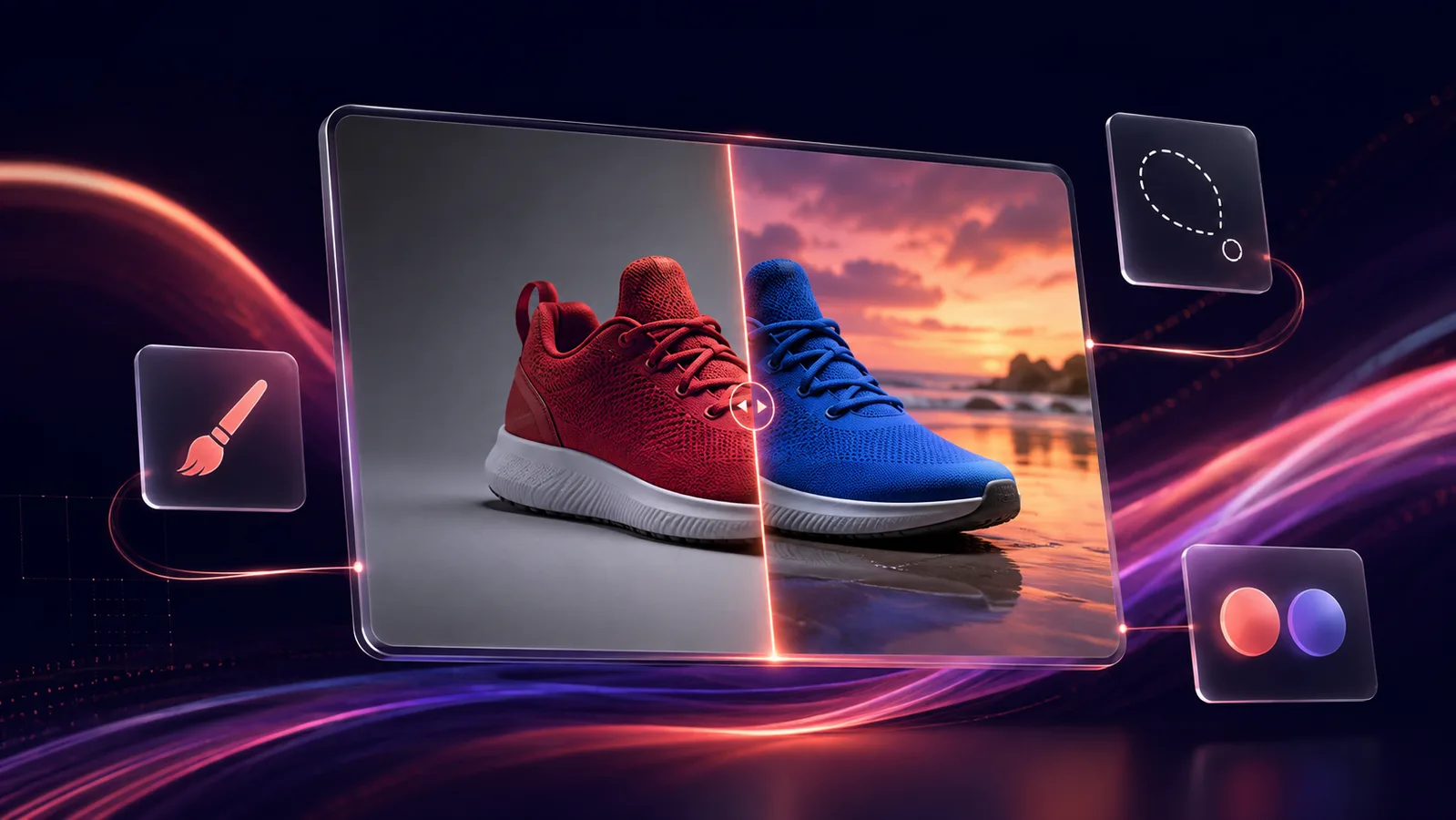
xAI released Grok Imagine Image 2.0 on August 7, 2026, as the new Quality Mode on grok.com and in the Grok iOS and Android apps. According to xAI, it ranked second worldwide on the Arena leaderboard for both text-to-image and image editing at launch - just behind OpenAI's GPT Image 2. The notable part is not the ranking, it is what the model leads with: editing tools built for real production work, not just prettier one-shot generations.
What shipped
- Region-level editing - a selection tool to mask a specific area of an image and revise only that region, plus one-click background removal with transparency.
- Multi-reference generation from up to 5 input images at once, for composites that pull elements from several sources into one scene.
- Smart Resize across nine aspect ratios, so one generation can be reframed for a feed post, a story and a banner without starting over.
- Sharper typography for dense, text-heavy layouts like posters and ad creative.
Why editing is the metric that actually matters
A model that only generates well is a slot machine - you write a prompt, get a result, and if one detail is wrong you reroll the whole image and hope everything else stays. A model that edits well lets you fix the one thing that is wrong and keep everything that already worked: the product angle, the character's face, the background you already approved. For anyone producing more than a single hero image - ad variants, a product line, a recurring character across a campaign - editing control saves far more time than a marginally prettier first draft.
Getting the same control in Karya today
You do not need a masking tool to get a region-level edit. Upload the image you want to change into the Image Studio's reference tray, then describe exactly what should change and, just as important, what should stay the same - "keep the product, background and lighting exactly as they are, only change the label text to say...". Instruction-following edit models treat the untouched parts of your description as a constraint, which gets you the same practical outcome as a manual selection tool.
GPT Image 2 Edit takes up to 16 reference images in one generation and is the strongest of Karya's models at precise, text-heavy edits. Nano Banana Pro Edit takes up to 8 reference images and is faster, with stronger subject and character consistency across a batch. For a multi-reference composite - pulling a product from one shot and a background from another - feed both images into the same edit call and describe how they combine.
A practical editing workflow
- Start from one base image and drop it into the reference tray rather than describing the whole scene from scratch.
- Write the edit as two parts: what changes, and what must not change. Naming the constant elements is what keeps an edit from drifting.
- For a composite, add a second or third reference image and tell the model which one supplies which element (subject from image 1, background from image 2).
- Iterate one instruction at a time. Small, specific edits stay controllable; a long list of simultaneous changes behaves more like a fresh generation.
Using it in Karya
Open the Image Studio, pick GPT Image 2 or Nano Banana Pro, and switch to its Edit variant. Add your reference image(s) in the upload tray and describe the change. Karya shows the credit cost before you generate, credits never expire, and the $5 entry pack is enough to try both models on the same edit.
Try it in Karya
Generate images and videos with frontier AI models from one canvas. Subscribe from $19/mo, or top up from $5 - 200 bonus credits with your first purchase, and top-up credits never expire.
Start free